Guide
Add Your Device
Register your MOZA wheel as a native SimHub device so LEDs, dashboards and effects light up.
Installing the plugin connects AZOM to your wheelbase, but SimHub treats your wheel, dashboard and LEDs as a device — and that has to be added once before any of the lighting or telemetry features appear. AZOM tells you when it's needed.
1 · Watch for the prompt
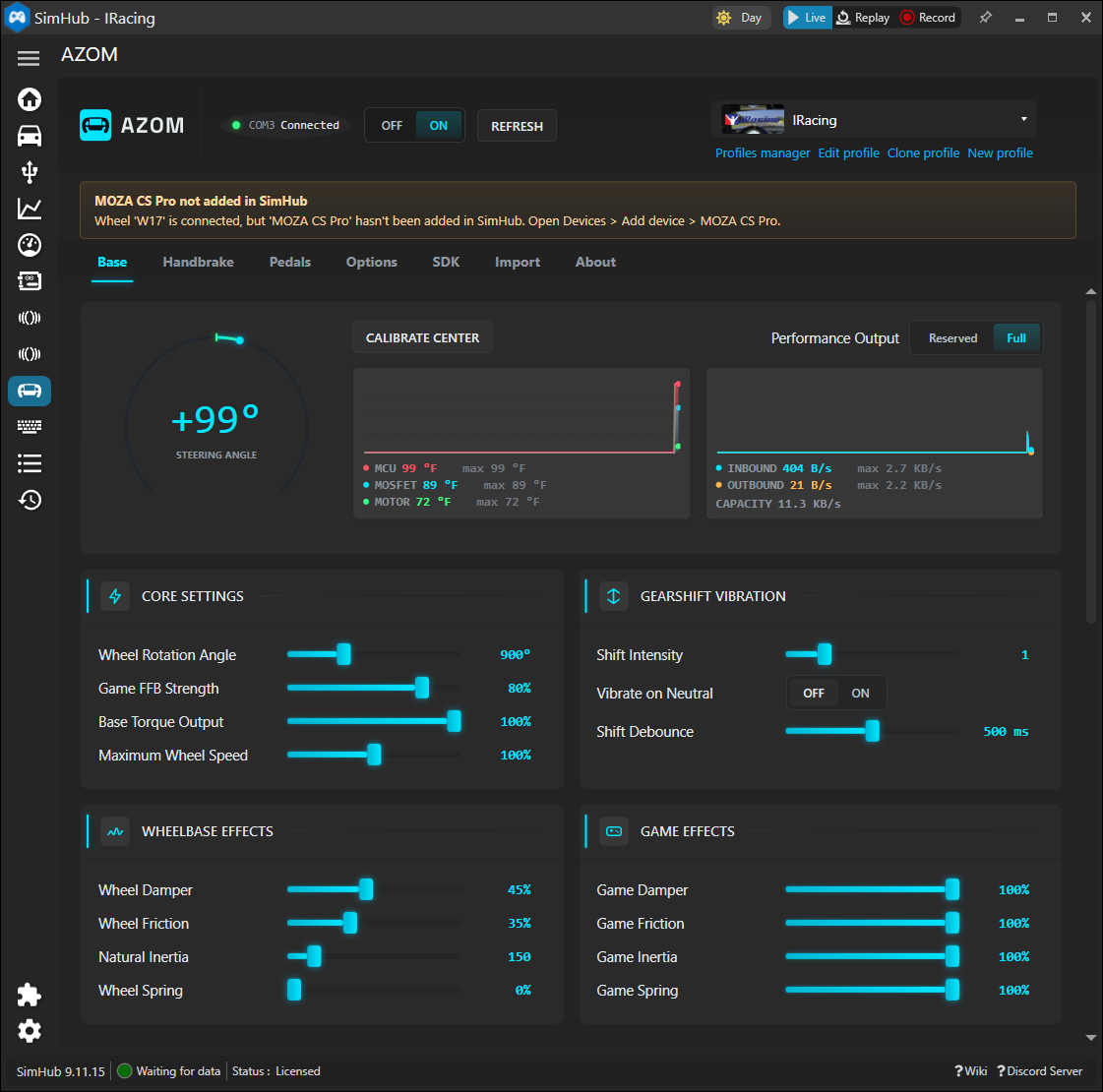
Open the AZOM panel. If your wheel isn't registered yet, a banner appears at the top naming the exact device to add — here, MOZA CS Pro — and the path to add it: Devices › Add device.
2 · Open Devices and add
Go to Devices in the left menu and click Add new device (the +). SimHub opens the Pick a supported device dialog. Your connected MOZA hardware shows up at the top under Devices found on your system — select it there rather than hunting through the full manual list.
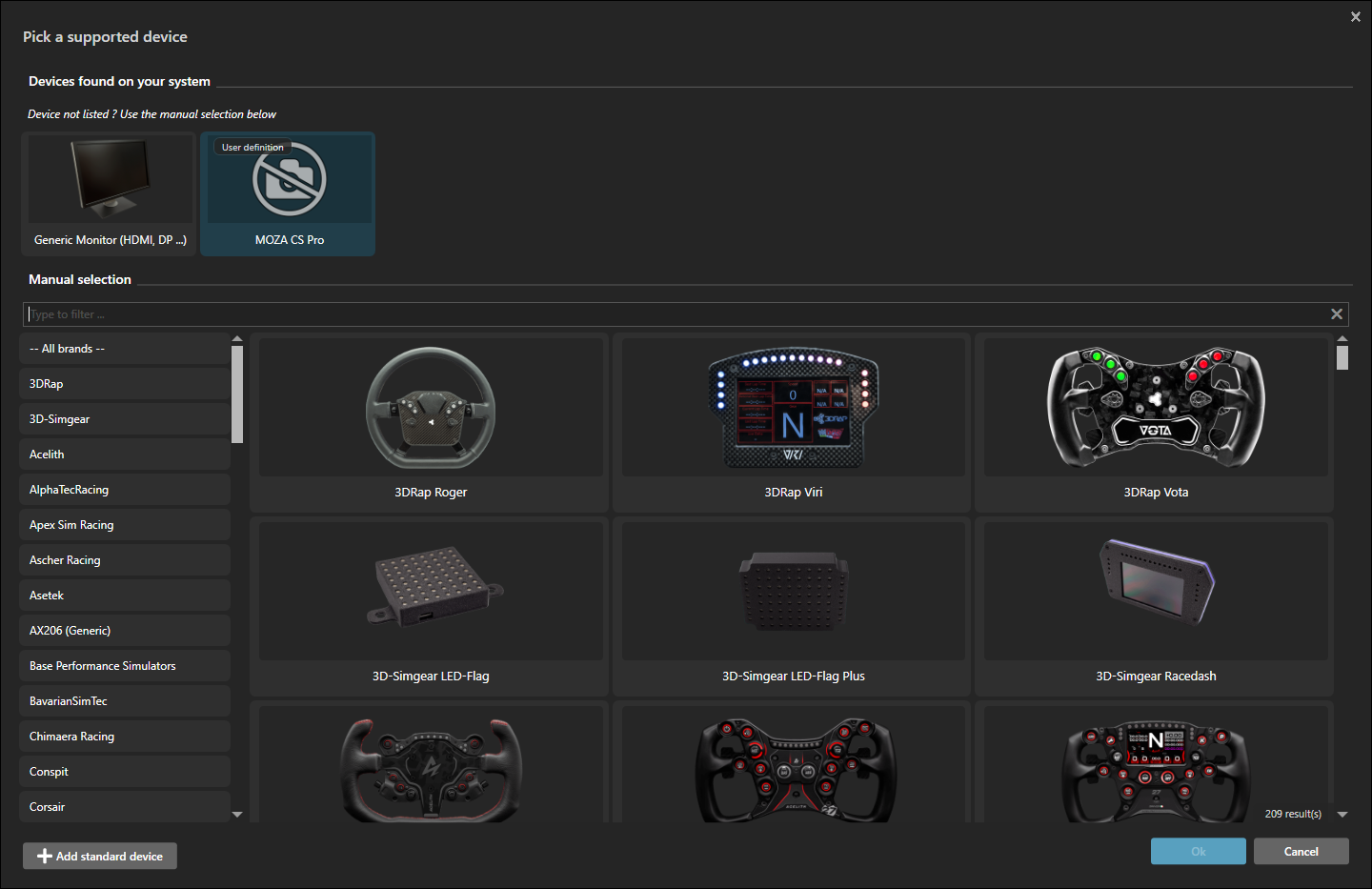
Choose your device and click Ok. Your MOZA wheel is now a first-class SimHub device — ready for the LED effects pipeline, LCD dashboard telemetry and onboard lighting.
Don't see it? Make sure the restarts from the install guide actually happened — device definitions are only deployed and loaded on the launches after the hardware is first detected.