Guide
Pedals & Handbrake
Set range, direction and output curves for your pedals and handbrake, and calibrate them in seconds.
If you run MOZA pedals or a handbrake, AZOM gives each axis the same treatment as the wheelbase: a live input read-out, direction and range, a calibration routine, and a draggable output curve. The tabs only appear for hardware that's actually connected.
Pedals
The Pedals tab splits into Throttle, Brake and Clutch, each configured independently. The bars across the top show live input so you can confirm the axis is moving before you touch anything.
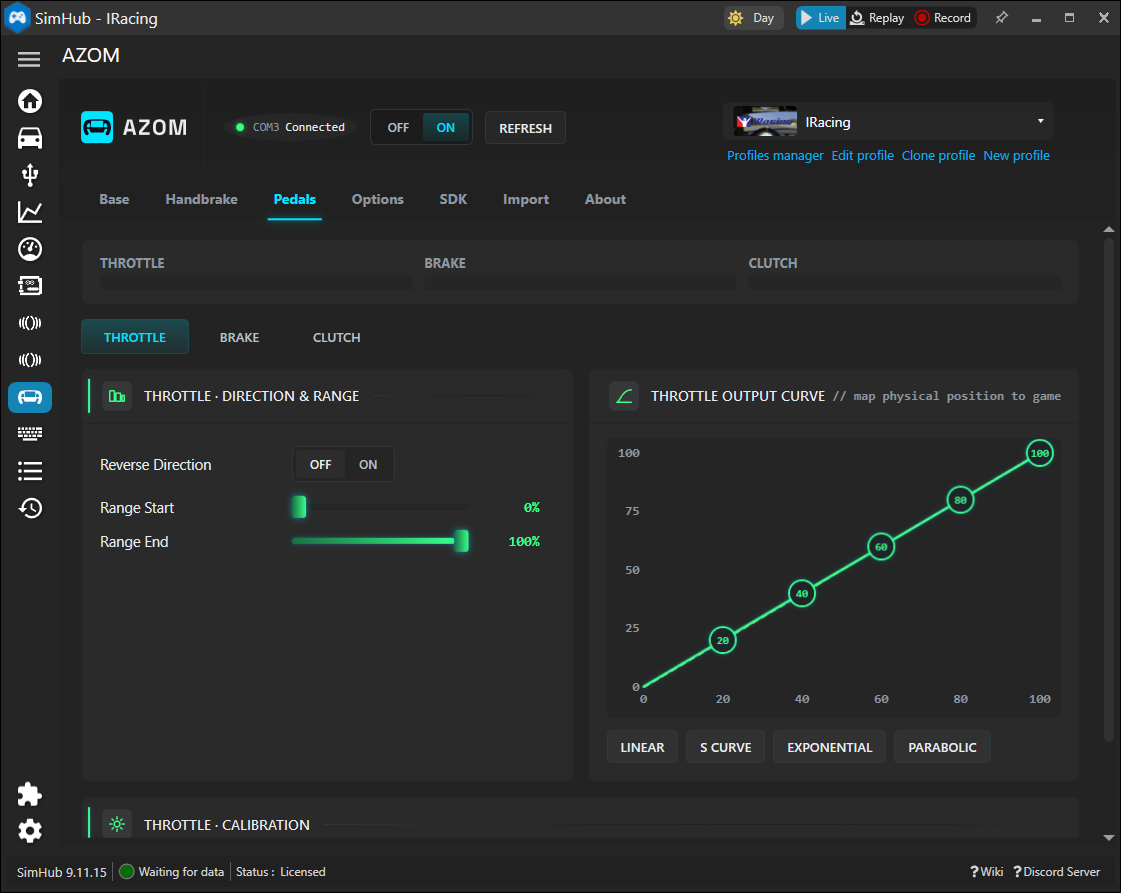
Direction & range
- Reverse Direction — flip the axis if it reads backwards.
- Range Start / Range End — trim the usable travel. Set Start above 0% to add a deadzone off rest; pull End below 100% so you reach full input before the pedal bottoms out.
Calibration
Open the Calibration section and follow the prompt — press the pedal through its full travel once and AZOM captures the physical end points. Do this any time the pedal feels like it isn't reaching 100%.
Output curve
The right-hand graph maps physical position to in-game input. Drag the nodes, or use the presets:
- Linear — 1:1, what you press is what the game gets.
- S Curve — finer control around the middle of travel.
- Exponential — gentle at first, aggressive near the end (a popular brake shape).
- Parabolic — the opposite weighting, strong early bite.
Handbrake
The Handbrake tab works the same way, with one extra choice.
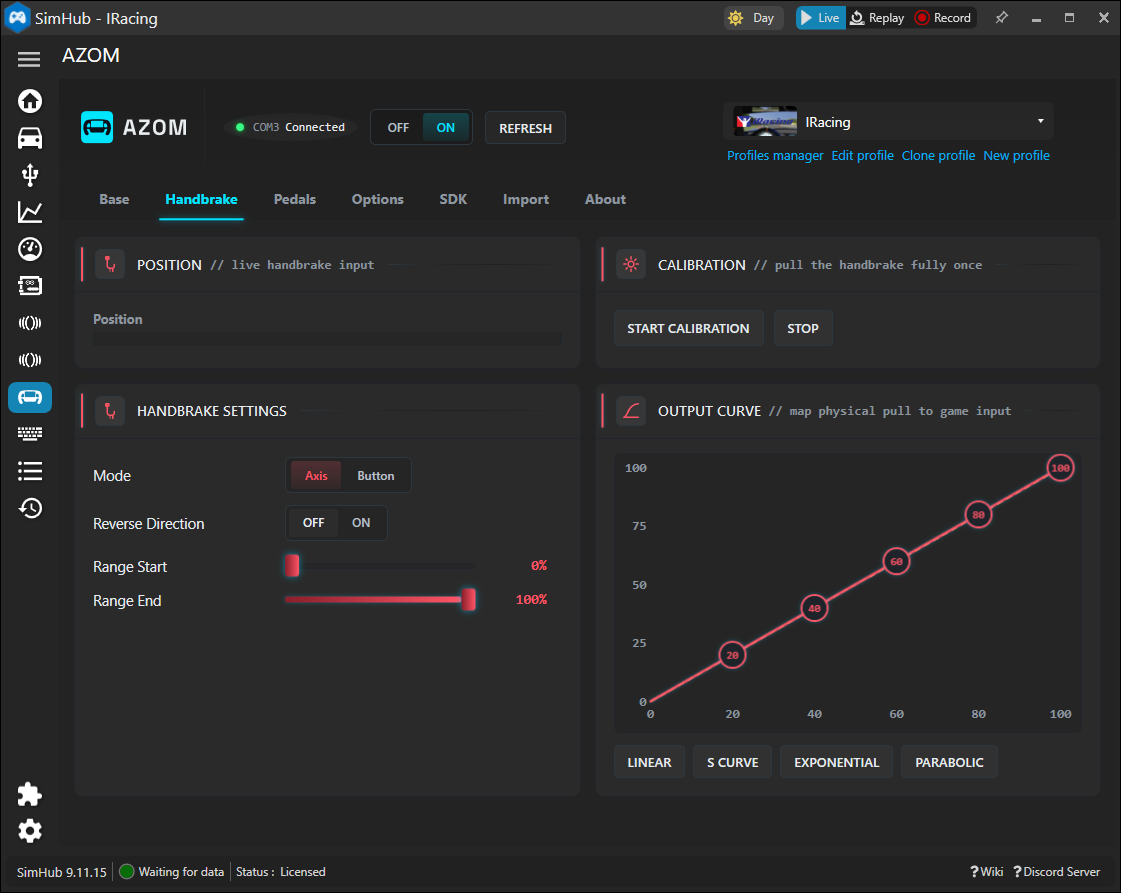
- Mode — Axis or Button. Axis reports progressive pull (for rally and drift, where partial lock matters). Button fires a simple on/off at a threshold, which some titles prefer.
- Reverse Direction, Range Start / End, Calibration and the Output Curve behave exactly as they do for the pedals.
Calibrate after mounting. Pull the handbrake fully once through the calibration routine after you bolt it to the rig — mounting tension changes the resting point.