Guide
Advanced LEDs with ATSR
Build telemetry-driven LED effects in the ATSR-EVO plugin from a ready-made MOZA profile, then import them into your wheel's Individual LEDs.
AZOM exposes your wheel's LEDs to SimHub's full effects pipeline, but the richest, telemetry- and input-driven animations come from the ATSR-EVO plugin. The flow is: build the effects against a generic wheel in ATSR, export an LED profile, then import it into your MOZA wheel's Individual LEDs under AZOM. To save you laying out every LED by hand, ready-made ATSR profiles are available for each MOZA wheel.
Two plugins, one wheel. ATSR designs the effects; AZOM puts them on the hardware. You need both installed in SimHub. AZOM should already have your wheel added as a device — install ATSR-EVO from its GitHub page.
1 · Add a generic wheel in ATSR
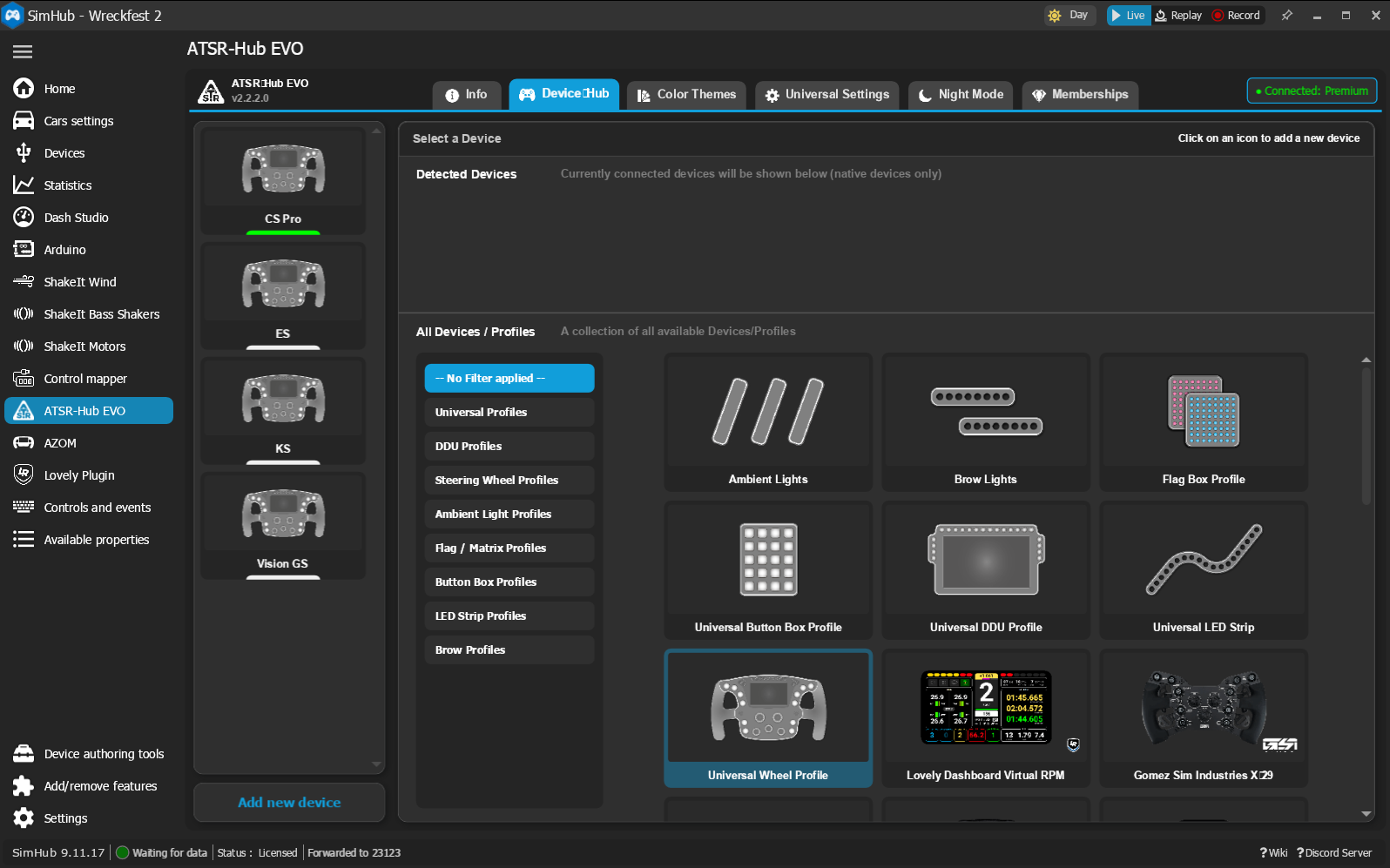
Open ATSR-Hub EVO in SimHub's left navigation and go to the Device Trait tab. Under All Series + Profiles, click Universal Wheel Profile to start a new generic wheel.
2 · Import the MOZA profile
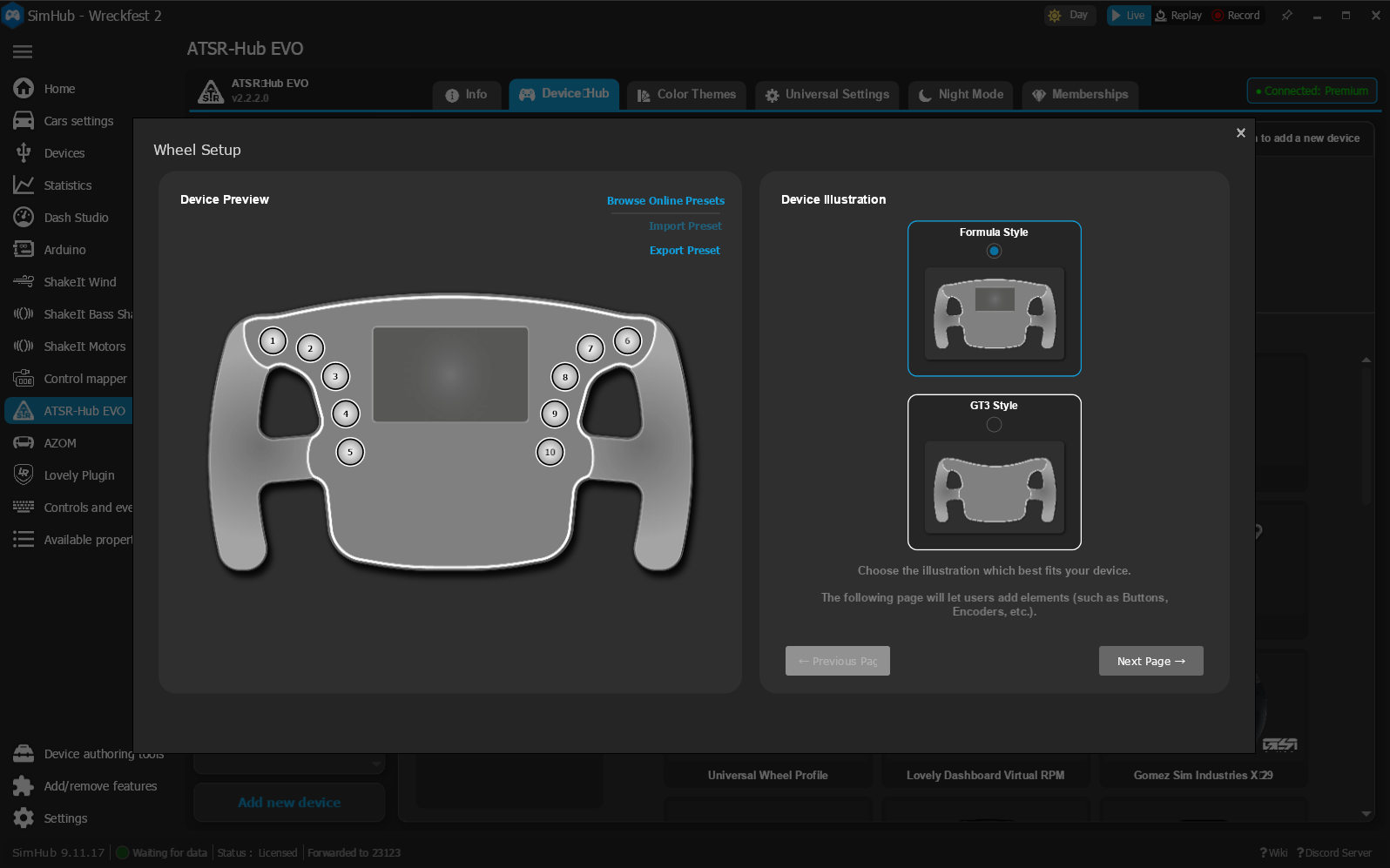
The Wheel Setup dialog opens. Click Import Wheel and choose the downloaded
.atsrdevice file for your wheel — this pre-loads the correct RPM, button and knob layout
so the LEDs map to the right positions. Then pick the Device Illustration (Formula
or GT3 Style) that best matches your rim and click Next Page →.
Download the profile that matches your wheel:
| Wheel | Profile |
|---|---|
| KS Pro | MOZA-KS-Pro.atsrdevice |
| CS Pro | MOZA-CS-Pro.atsrdevice |
| CS V2P | MOZA-CS-V2P.atsrdevice |
| KS | MOZA-KS.atsrdevice |
| GS V2 | MOZA-GS-V2.atsrdevice |
| ES | MOZA-ES.atsrdevice |
| Vision GS | MOZA-Vision-GS.atsrdevice |
| FSR | MOZA-FSR.atsrdevice |
3 · Select your wheelbase / hub device
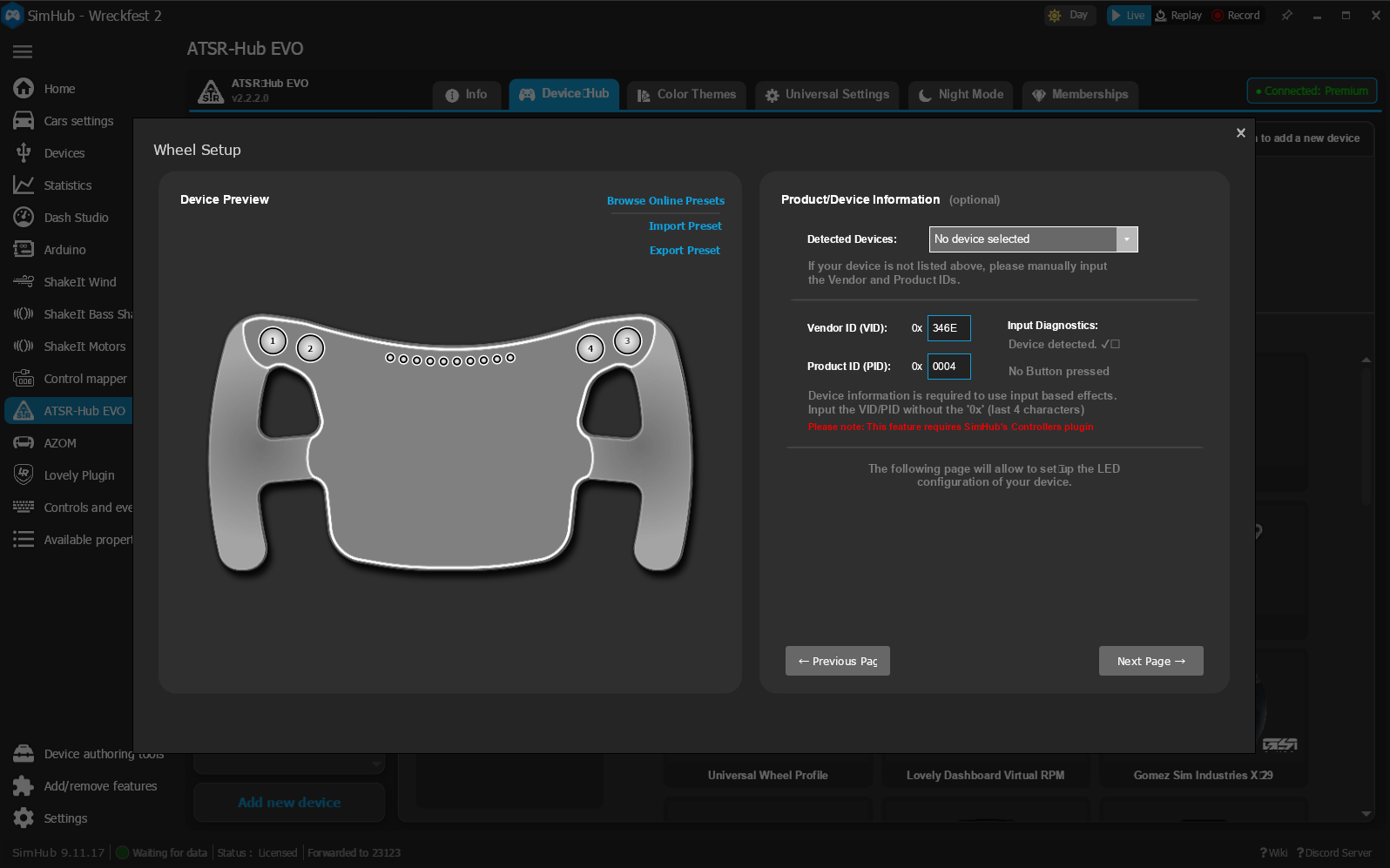
On the Product/Device Information page, the Vendor ID is 346E for all MOZA
hardware. Set the Product ID to match the device your wheel actually connects through —
this is what binds ATSR's input-driven effects to your MOZA hardware. The imported profile
ships with a typical Product ID, so change it if your base or hub differs.
| Your MOZA base / hub | Product ID |
|---|---|
| R3 | 0005 |
| R5 | 0004 |
| R9 | 0002 (or 0012) |
| R12 / R12 V2 | 0006 (or 0016) |
| R16 / R21 | 0000 |
| Universal Hub | 0020 |
Through a hub? If your wheel attaches to a MOZA Universal Hub, the host only sees the hub — use
0020, not your wheelbase's ID.
4 · Add the wheel
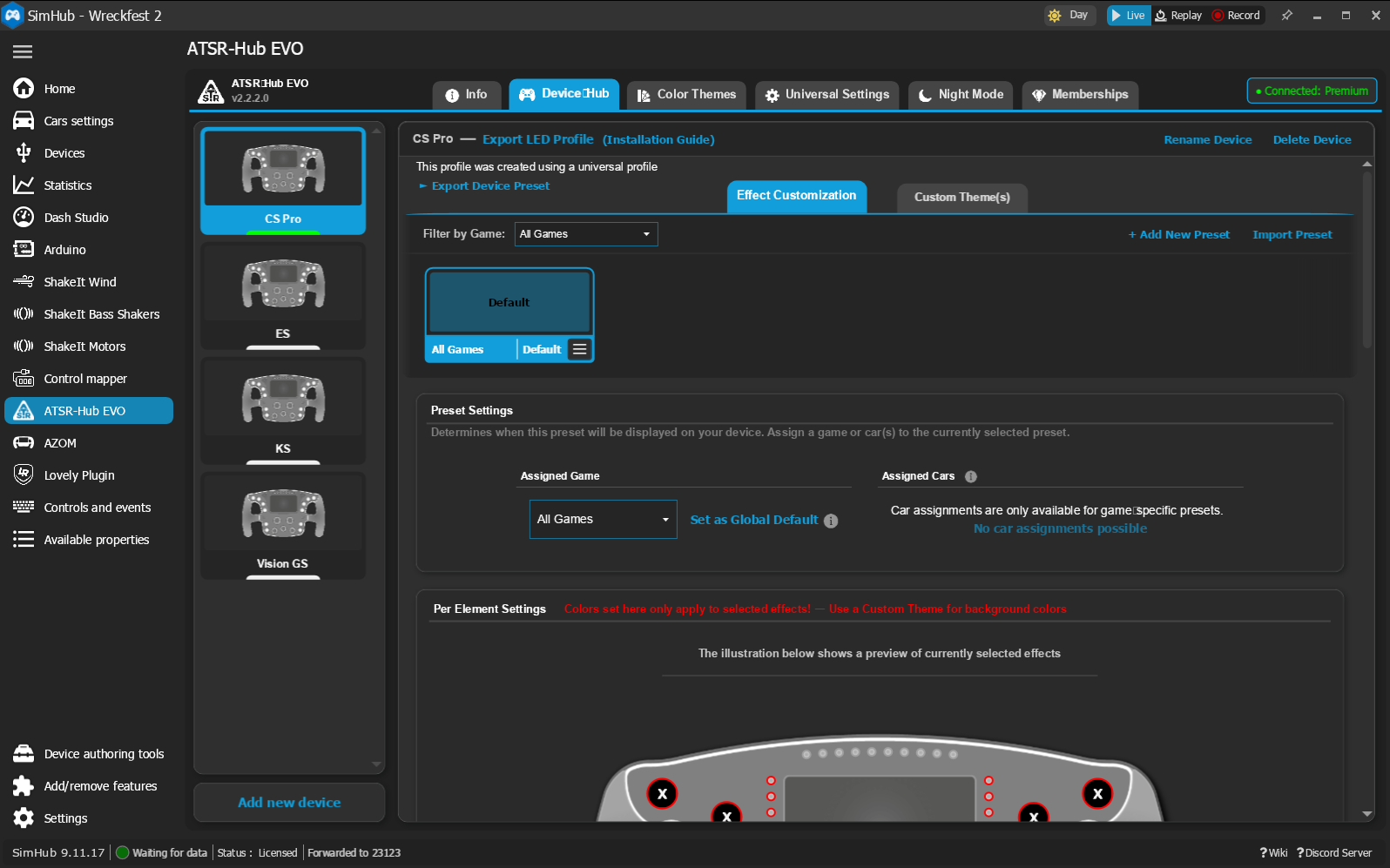
Continue through the remaining wizard pages — ATSR walks you through which LED groups (RPM lights, buttons, knobs) to configure — and finish to add the wheel. It appears in ATSR's left navigation as its own device, where you can tune presets and per-element effects under Effect Customization.
5 · Export the LED profile
Open your new ATSR device and, on the Effect Customization tab, click Export Profile. Save the exported LED profile somewhere you can find it — this is the file AZOM imports.
6 · Import into AZOM's Individual LEDs
Back in SimHub, go to Devices, open your MOZA wheel, and switch to the LEDs tab. Under Individual leds, click Import profile and select the file you just exported.
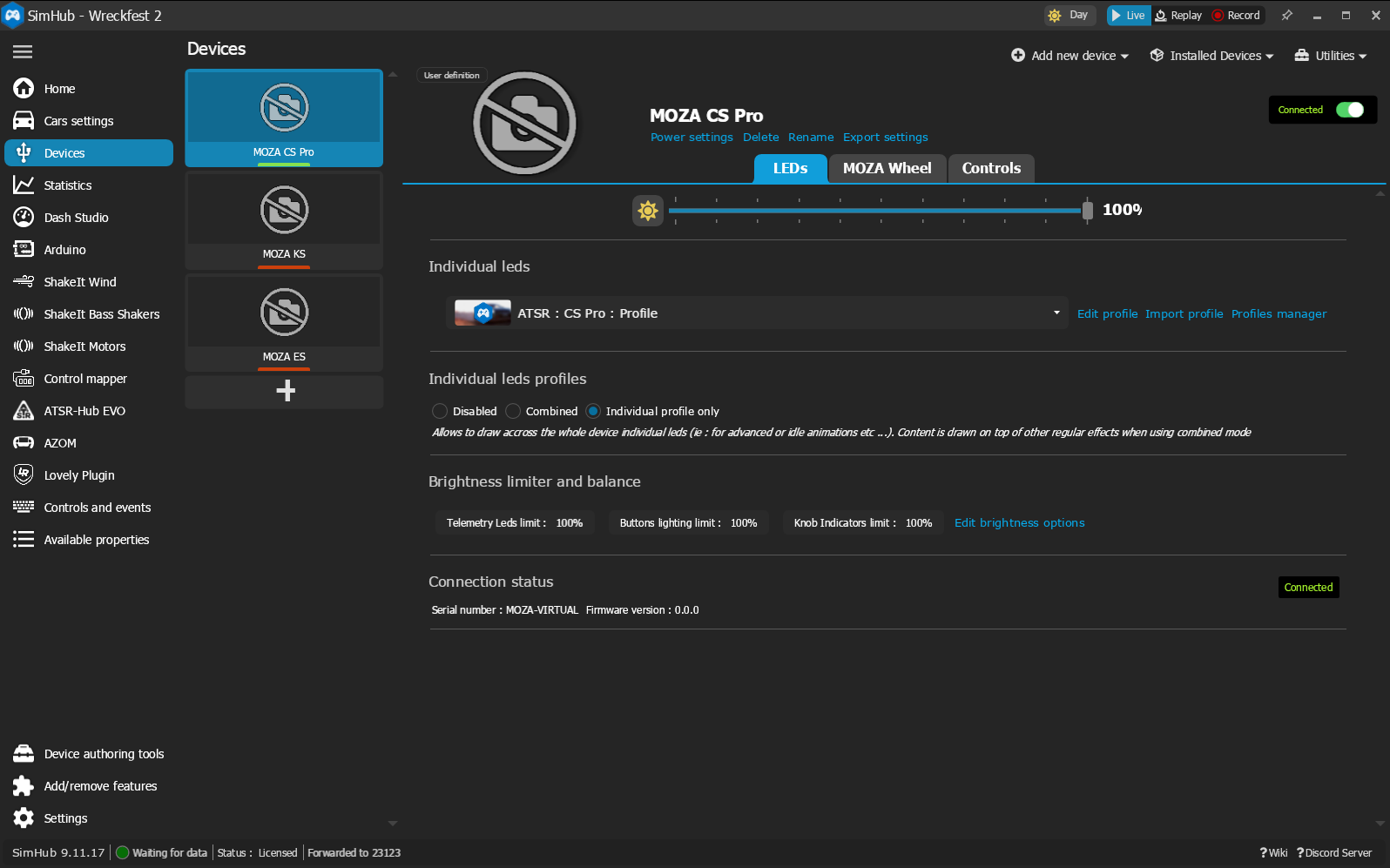
Finally, set Individual leds profiles to match how you want it to play:
- Individual profile only — the ATSR profile replaces your other LED effects.
- Combined — the ATSR profile is layered on top of your regular effects .
- Disabled — turns the individual profile off without removing it.
That's it — ATSR now drives your wheel's individual LEDs through AZOM. Tweak the effects any time in ATSR, re-export, and re-import to update.