Guide
Controls & Actions
Bind wheel buttons to AZOM actions — FFB strength, rotation, brightness, dashboard switching and more.
AZOM exposes 40+ bindable actions — FFB strength up/down, rotation, display brightness, dashboard switching, work mode and more — each with fine and coarse steps. Map them to wheel buttons and you can adjust your base without leaving the cockpit. The binding is done through SimHub's Controls and events.
1 · Open Controls and events
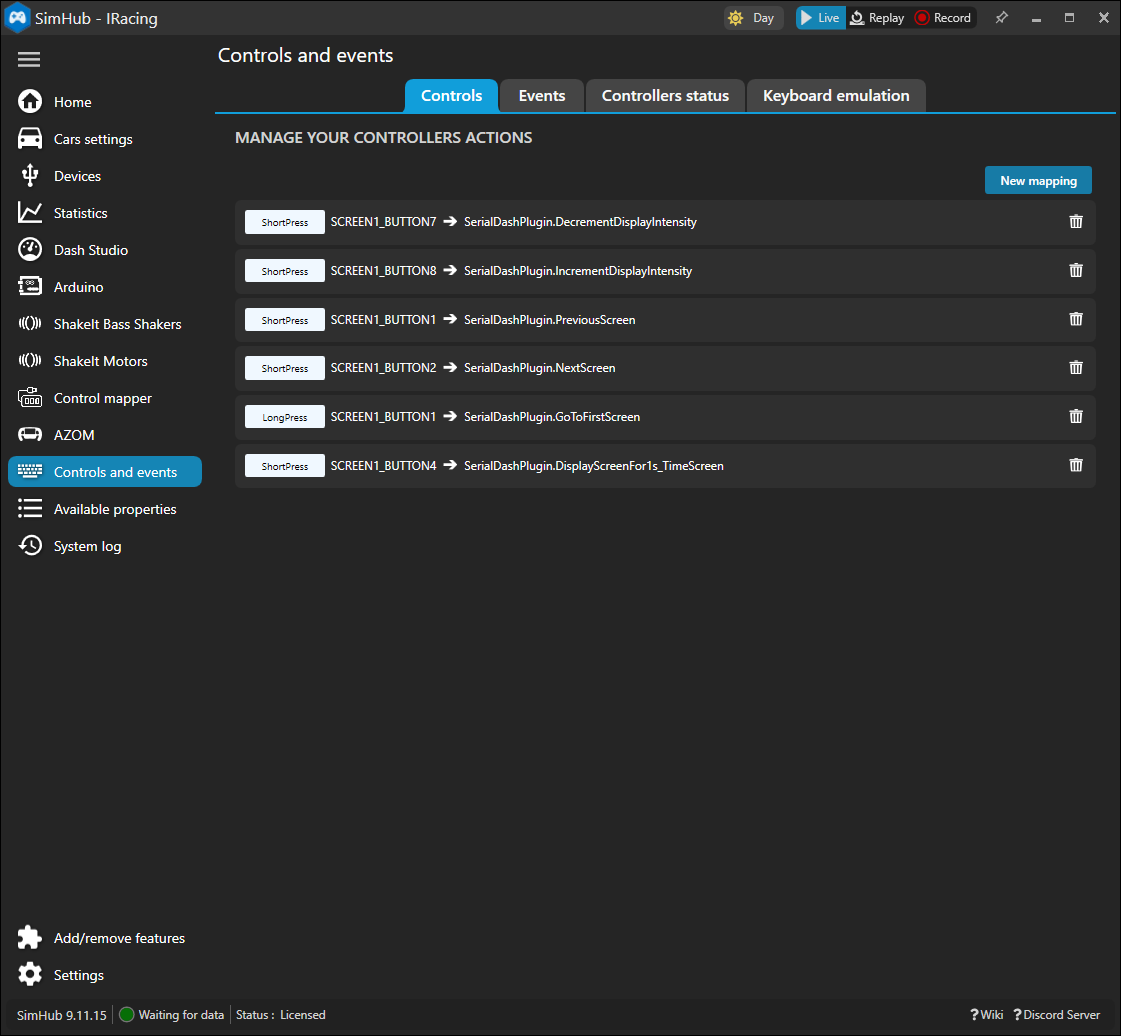
Pick Controls and events from the left menu and stay on the Controls tab. This is the list of every button-to-action mapping on your rig. Click New mapping to add one.
2 · Bind a button to an AZOM action
The Mapping Picker opens. It has two halves:
- Source (left) — the input. Press the wheel button you want to use and it auto-selects, or pick it from the list.
- Target (right) — the action. Choose the AZOM plugin and scroll its actions:
AZOM.FfbStrengthUp,AZOM.RotationDown,AZOM.DisplayBrightnessUp,AZOM.DisplayToggle, and so on. The…Coarsevariants jump in bigger steps.
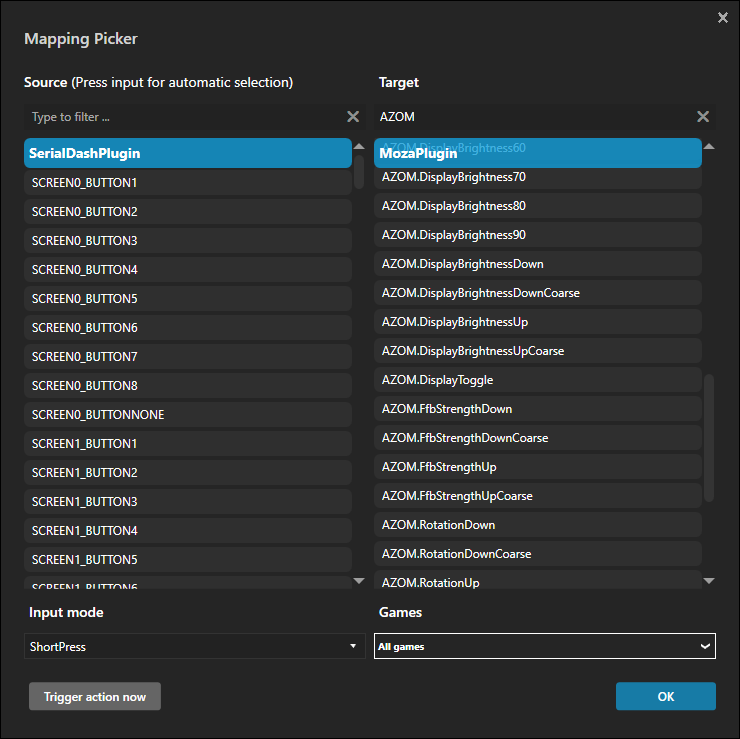
Set the Input mode (ShortPress, LongPress, etc.), use Trigger action now to test it lands, and click Ok. Repeat for each control you want — a typical setup pairs two buttons for FFB up/down and two more for dashboard previous/next.
Fine vs Coarse. Bind the normal action to a short press and the
…Coarseversion to a long press of the same button, and you get both precision and speed from one input.
All available actions
Every action is namespaced AZOM. and appears under the AZOM plugin in the Mapping
Picker's target list. Each one nudges, sets or toggles exactly what the matching control in
the plugin panel does, and persists the change.
Step actions
Seven settings can be stepped up or down from a button. Each registers four variants — add the suffix to the base name:
…Up/…Down— one fine step…UpCoarse/…DownCoarse— one coarse step
So AZOM.FfbStrengthUp raises FFB by 5 %, and AZOM.FfbStrengthDownCoarse drops it by
10 %. Values clamp to each setting's range.
| Base action | Fine | Coarse | Range | Controls |
|---|---|---|---|---|
AZOM.FfbStrength |
±5 | ±10 | 0–100 % | Base force-feedback strength |
AZOM.Torque |
±5 | ±10 | 50–100 % | Base torque limit |
AZOM.Rotation |
±90 | ±180 | 90–2700° | Steering rotation (angle + max together) |
AZOM.DisplayBrightness |
±5 | ±10 | 0–100 % | Wheel screen brightness |
AZOM.Ab9EngineIntensity |
±5 | ±10 | 0–100 | AB9 shifter engine-vibration intensity |
AZOM.Ab9EngineFrequency |
±10 | ±20 | 0–200 Hz | AB9 shifter engine-vibration frequency |
AZOM.Ab9GearShiftIntensity |
±5 | ±10 | 0–100 | AB9 shifter gear-shift vibration |
AB9 actions only take effect when an AB9 active-shifter profile is loaded.
Jump to a display brightness
Eleven actions set the wheel screen to a fixed level in a single press, from
AZOM.DisplayBrightness0 (off) through AZOM.DisplayBrightness100, in steps of 10 —
AZOM.DisplayBrightness50, AZOM.DisplayBrightness80, and so on.
Dashboard & telemetry
| Action | What it does |
|---|---|
AZOM.DashboardNext |
Switch the wheel to the next dashboard layout (wraps around) |
AZOM.DashboardPrev |
Switch to the previous dashboard layout |
AZOM.DashboardTelemetryToggle |
Toggle telemetry streaming to the active wheel page |
AZOM.DashboardTelemetryOn |
Start streaming telemetry to the wheel |
AZOM.DashboardTelemetryOff |
Stop streaming telemetry to the wheel |
AZOM.TestModeToggle |
Run / stop the synthetic telemetry sweep for testing the dash |
Dashboard cycling needs more than one layout loaded on the wheel; with zero or one it does nothing.
Display, base & LEDs
| Action | What it does |
|---|---|
AZOM.DisplayToggle |
Blank the wheel screen, or restore it at the previous brightness |
AZOM.WorkModeOn |
Put the base in its normal active mode |
AZOM.WorkModeOff |
Put the base into standby |
AZOM.ClearLeds |
Turn off every LED the plugin is driving |
AZOM.CalibrateCenter |
Re-center the wheelbase — hold the wheel at physical center when triggering |