Guide
Import a Profile
Load a MOZA Pit House preset into AZOM and review exactly what changes before you apply it.
You don't have to build your force-feedback settings from scratch. AZOM can read MOZA Pit House preset files directly, so any community or official preset — or one you exported yourself — becomes a starting point. Crucially, it shows you a diff before changing a thing.
1 · Open the Import tab
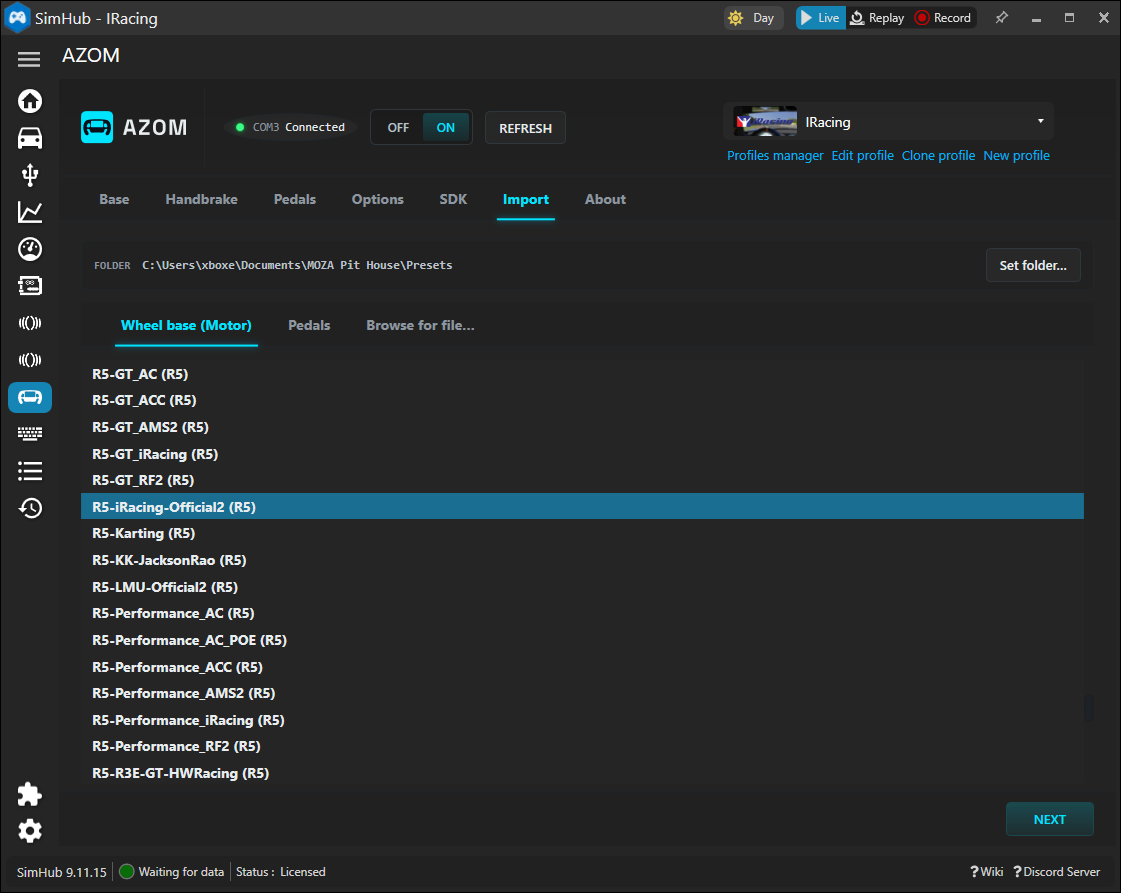
Go to the Import tab in the AZOM panel. The Folder line points at where your presets live; by default that's your Pit House presets directory:
C:\Users\<you>\Documents\MOZA Pit House\Presets
Use Set folder… if yours are somewhere else.
2 · Pick a preset
Presets are grouped by type — Wheel base (Motor), Pedals, or Browse for file… for one sitting elsewhere. Select the preset you want and click Next.
Tip: Names like
R5-GT_iRacingorR5-Performance_ACencode the base, a feel style, and the game they were tuned for. Pick one that matches your hardware and title.
3 · Review the changes
This is the part that makes importing safe. AZOM compares the preset against your current profile and lists every setting that will change, old value → new value, with the untouched ones greyed out.
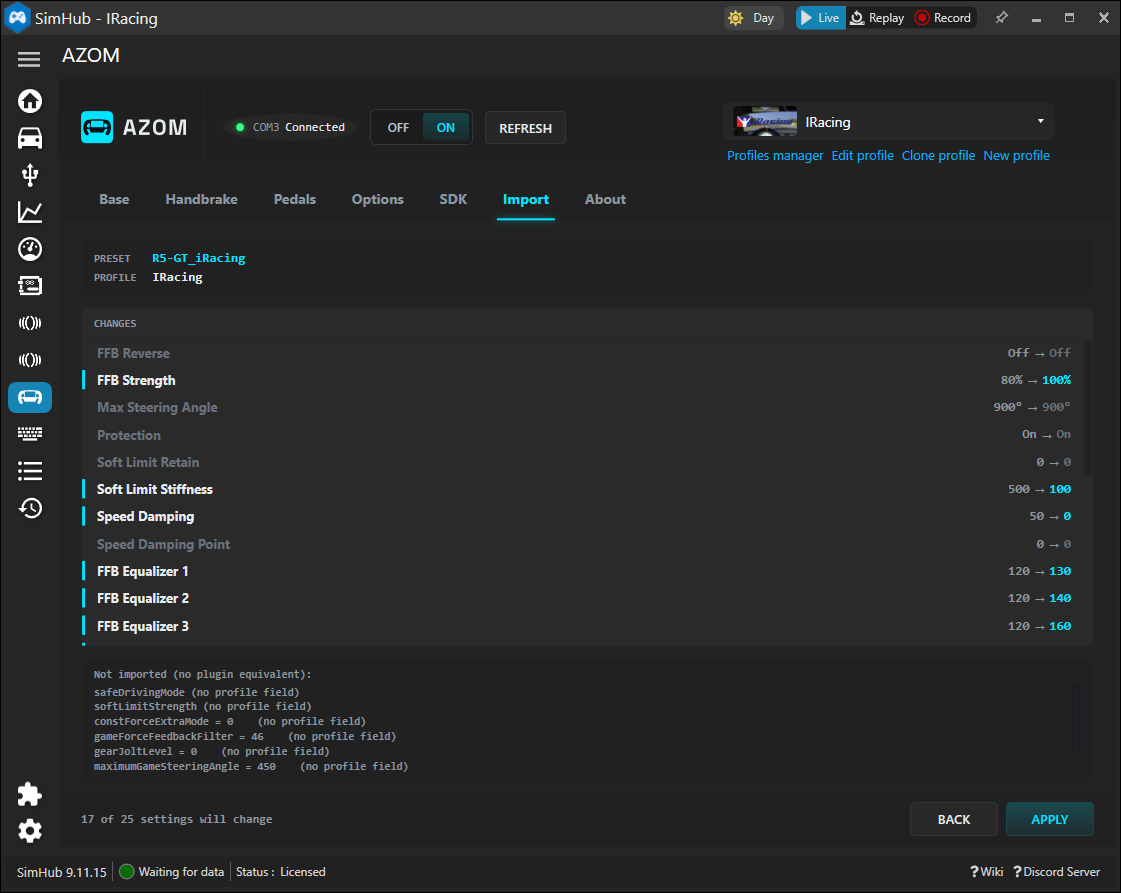
Anything the plugin can't map (Pit-House-only fields with no AZOM equivalent) is listed separately at the bottom as not imported, so there are no silent surprises.
4 · Apply
Happy with the diff? Click Apply and the values land in your active profile. Because profiles are per game, the import only affects the game you're currently set to — switch games and your other setups are untouched.
Back out any time. Importing only writes the values shown in the diff. If you don't like the result, import a different preset or adjust by hand on the Base tab — nothing is permanent.