Guide
Wheel LEDs & Knobs
Drive your wheel's RPM lights and knob rings through SimHub, and set their onboard idle effects.
Once your wheel is added as a device, its LEDs become part of SimHub's full effects pipeline — and AZOM also exposes the onboard animations the wheel plays on its own when no telemetry is flowing. There are two places to work: the LEDs tab (SimHub effects) and the MOZA Wheel tabs (onboard behaviour).
The LEDs tab — SimHub effects
Open your wheel under Devices and switch to LEDs. Each LED group on the wheel — Buttons lighting, Telemetry LEDs, Knob Indicators, Individual LEDs — gets its own effects profile that you can edit, import, or manage.
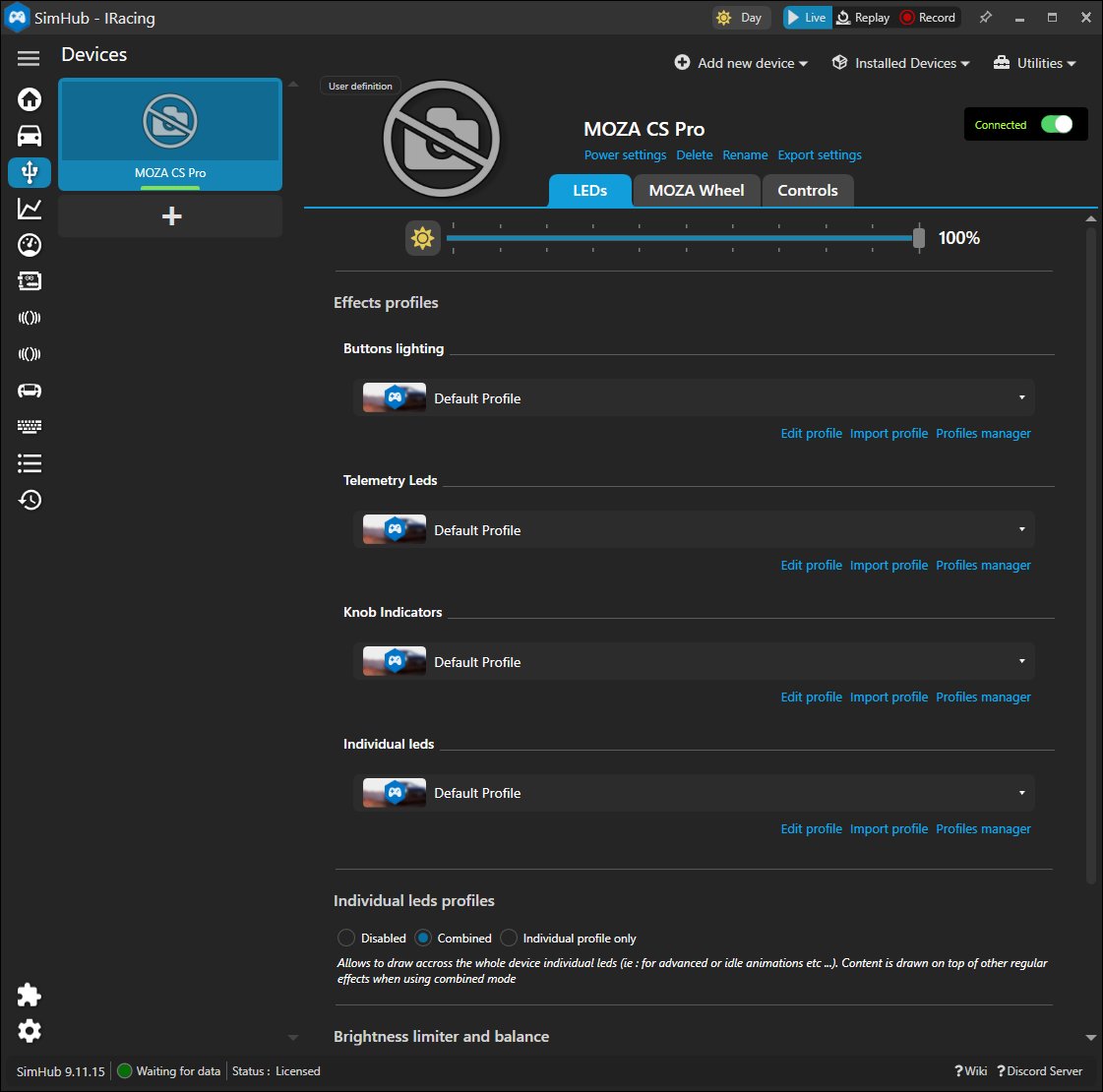
This is standard SimHub LED territory: drop RPM strips, flag colours, limiter animations and status effects onto each group. For genuinely advanced, telemetry-driven animation, pair it with ATSR-EVO — see Advanced LEDs with ATSR for the ready-made MOZA profiles and import steps.
Combined vs Individual. The Individual LEDs profiles mode lets you draw across the whole device for idle animations. Combined layers it on top of your regular effects; Individual profile only replaces them.
RPM lights — onboard idle
The RPM tab (under MOZA Wheel) controls the shift lights. RPM LED Mode chooses between Off, SimHub Mode (driven by your telemetry effects), and Static.
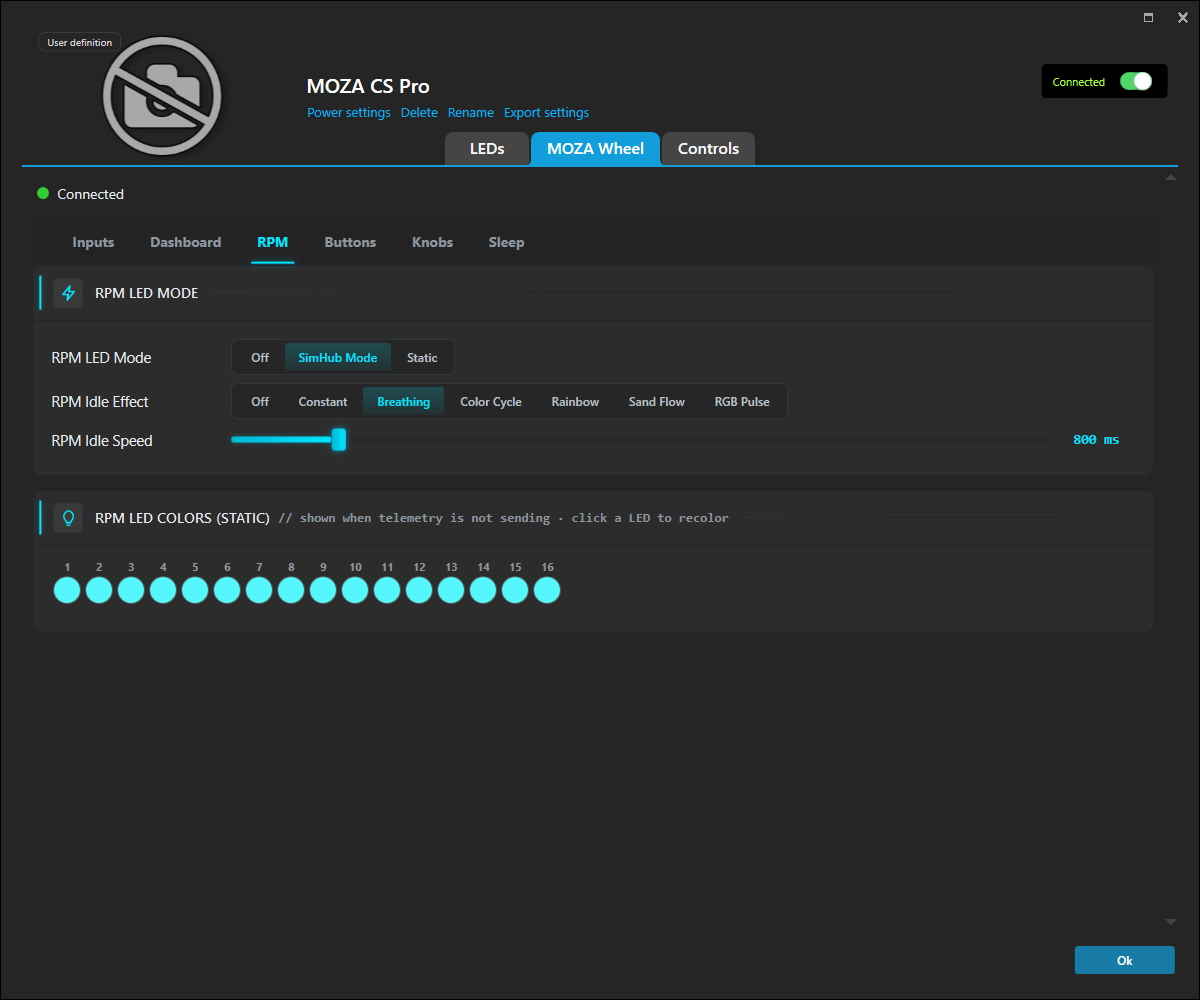
The RPM Idle Effect is what plays when you're not in a session — Constant, Breathing, Color Cycle, Rainbow, Sand Flow or RGB Pulse — with an Idle Speed slider. The RPM LED Colors row sets the static per-LED colours used when telemetry isn't sending.
Knobs — rings & signal mode
The Knobs tab configures the rotary LED rings. Knob LED Mode and Knob Idle Effect mirror the RPM controls, but the interesting part is per-knob colour.
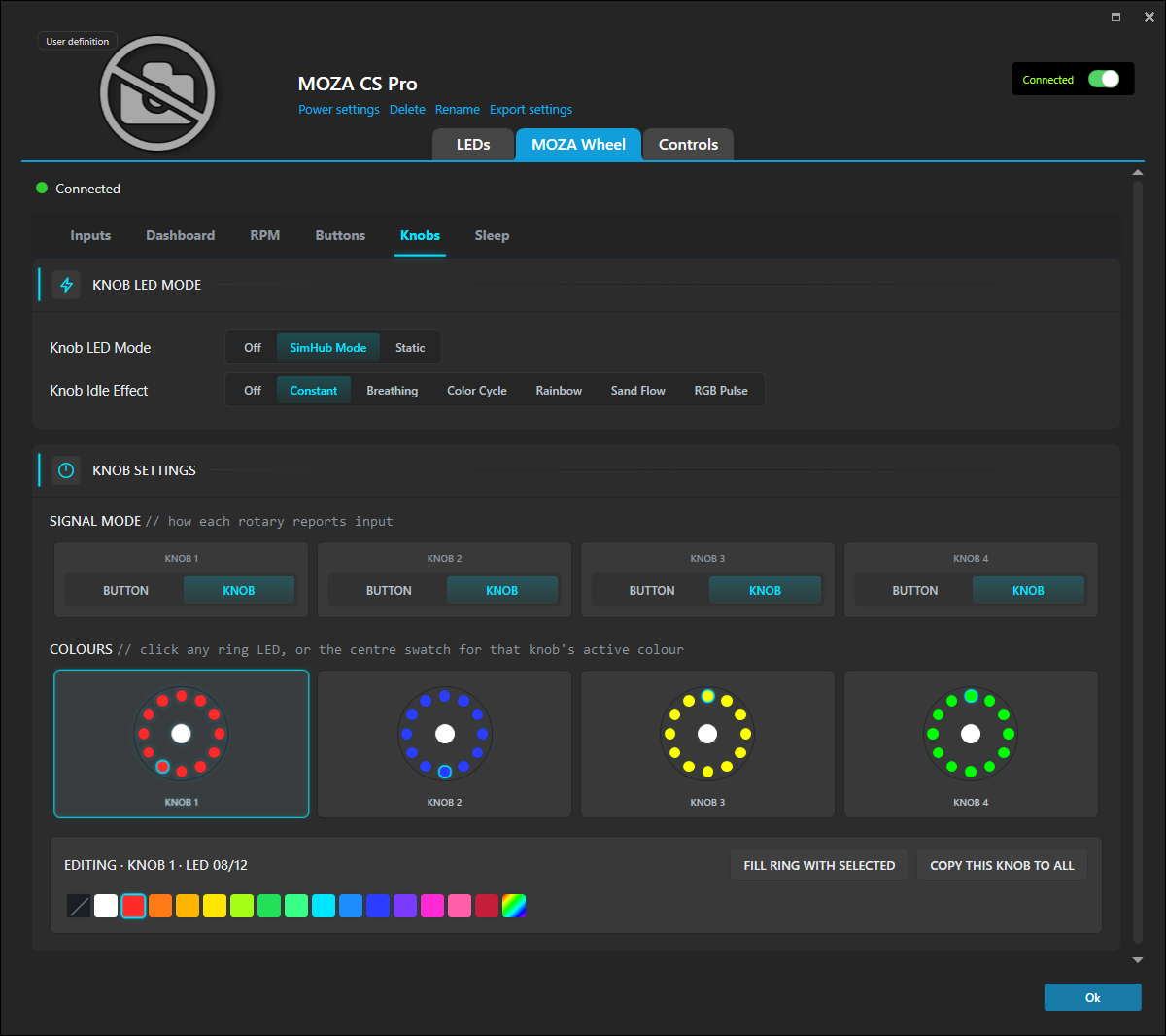
- Signal Mode — set each rotary to report as a Button (step clicks) or Knob (continuous), to match what the game expects.
- Colours — click any ring LED, or the centre swatch, to recolour it from the palette. Fill ring with selected paints the whole ring at once, and Copy this knob to all replicates one knob's look across the others.